Baiklah pada postingan kali ini saya akan berbagi tips bagaimana cara mengaktifkan efek Desktop Cube pada compiz di ubuntu 12.04 berdasarkan pengalaman saya. Apa itu compiz? compiz adalah sebuah compositing window manager yang digunakan pada system X window a.k.a linux, compiz menggunakan hardware 3D yang ada di system kita untuk membuat atau merender sebuah dekstop efek yang sangat indah dan bisa juga difungsikan sebagai windows manager. Sayangnya kehandalan compiz tidak disupport sepenuhnya oleh hardware yang beredar di pasaran.
Yang perlu kita lakukan untuk mendapatkan efek compiz adalah menginstall compiz.
Jalankan perintah berikut pada terminal:
= sudo apt-get install compizconfig-settings-manager compiz-plugins-extra Syarat untuk dapat menjalankan compiz di desktop kita adalah VGA yang kita gunakan harus sopport dengan compiz. Oleh karena itu penting bagi kita untuk mengetahui VGA komputer kita siap menjalankanefek Compiz Fusion atau belum. Untuk mengecek apakah VGA yang kita gunakan support dengan compiz bisa lakukan step di bawah ini berurutan. = wget http://blogage.de/files/9124/download -O compiz-check = sudo chmod +x compiz-check = ./compiz-check
Akhirnya VGA saya support dengan compiz. Oke kita anggap semuanya tidak ada masalah dengan hal di atas..hehehehe. .
Menerapkan Efek Desktop Cube
Buka CompizConfig Settings Manager dan klik menu General Options kemudian pilih tab Desktop Size. Ubah nilai Horizontal Virtual Size menjadi 4 atau terserah Anda asalkan lebih dari 2, dan isikan nilai 1 pada Vertical Virtual Size dan Number of
Desktop. Kemudian klik Back
Setelah langkah di atas selesai lanjutkan dengan memilih Menu Desktop.
Centang pada Desktop Cube dan Rotate Cube. Hal ini sudah bisa membuat efek Cube pada desktop Anda dengan menekan tombol ctrl + alt + klik lalu geser. Untuk mengatur Jauh dekatnya Cube Anda klik Rotate Cube kemudian ganti nilai Zoom sesuai selera
Anda. Semakin besar nilai akan membuat jarak semakin jauh.
Untuk menambahkan animasi Cube yang lain, pilih menu Effects
Jika yang dilingkari pada gmbar di atas dicentang maka akan menampilkan efek
seperti ini
Kita juga bisa merubah deformitas Cube caranya pilih Cube Reflection and
Deformation kemudian klik tab Deformation.
Saya ubah deformasinya menjadi Cylinder maka akan nampak seperti di bawah ini.
Agar lebih indah Anda bisa mengatur sesuai selera Anda. Selamat berkreasi. .:Salam Smile:.
:D web source = http://smilepedia.blogspot.co.id/2012/08/ubuntu-mengaktifkan-efek-desktop-cube.html
Often, when you log into your Linux VPS, you are looking to get some
work done. However, no one can claim that the thousands of developers
who create the software available on a typical Linux machine are always
completely serious.
Linux has a history of including some fun "easter eggs" in its
software. In this article, we'll tell you about some fun commands and
options to lighten up your day. Not all of them are "easter eggs", but
we think you'll enjoy them none-the-less.
Text Editors
Vim and Douglas Adams
Those of you familiar with Douglas Adams, writer of The Hitchhiker's Guide to the Galaxy, will appreciate a relevant help option included in the vim text editor.
If you haven't already, install vim. In Ubuntu/Debian, you can type:
sudo apt-get install vim
In CentOS/Fedora, you can type:
sudo yum install vim
Open the editor from the command line:
vim
Type the following to access a special vim help menu:
:help 42
What is the meaning of life, the universe and everything?  *42*
Douglas Adams, the only person who knew what this question really was about is
now dead, unfortunately.  So now you might wonder what the meaning of death
is...
Type the following, twice, to exit vim:
:q
:q
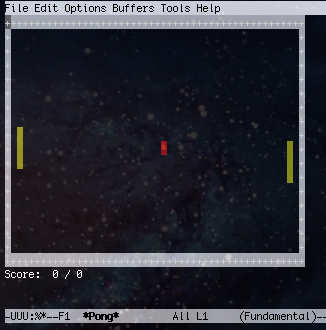
Emacs Games
Not to be outdone, Emacs, the text-editor famous for including
everything but the kitchen sink, includes a surprising number of games
that can be accessed from within the editor itself.
First, install emacs. On Ubunut/Debian, this would be:
sudo apt-get install emacs
You can find out what games are available by checking out this directory:
Next, type the Esc key, followed by x (for execute), and then type the name of the game you wish to start:
Esc-x
pong
To quit Emacs when you are finished, type Ctrl, followed by x, and then Ctrl and c:
ctrl-x
ctrl-c
Apt Commands
Apt-get Cows
On Ubuntu and Debian, the apt-get package manager has had an embedded easter egg for a long time now.
If you type the help command for apt-get, you will get a hint:
apt-get help
. . .
. . .
  -c=? Read this configuration file
  -o=? Set an arbitrary configuration option, eg -o dir::cache=/tmp
See the apt-get(8), sources.list(5) and apt.conf(5) manual
pages for more information and options.
                       This APT has Super Cow Powers.
The last line tells us that the easter egg is active in this version of apt. Type:
With apt-get's affinity for cows, users may be curious as to whether aptitude, another apt tool, also implements a fun easter egg.
We can check the help like before:
aptitude help
. . .
. . .
 -u             Download new package lists on startup.
                  (terminal interface only)
 -i             Perform an install run on startup.
                  (terminal interface only)

                  This aptitude does not have Super Cow Powers.
Well that is disappointing. Let's try it anyways though:
aptitude moo
There are no Easter Eggs in this program.
A fairly straight forward answer. But persistence is important. Let's add some verbosity:
aptitude -v moo
There really are no Easter Eggs in this program.
And again...:
aptitude -vv moo
Didn't I already tell you that there are no Easter Eggs in this program?
If you keep adding more "verbosity", you will eventually get this:
aptitude -vvvvv moo
All right, you win./----\-------/ \/ \/ |-----------------/ --------\----------------------------------------------
It doesn't look like too much. Let's add another "v":
aptitude -vvvvvv moo
What is it? It's an elephant being eaten by a snake, of course.
This is a reference to the book The Little Prince by Antoine de Saint-Exupéry.
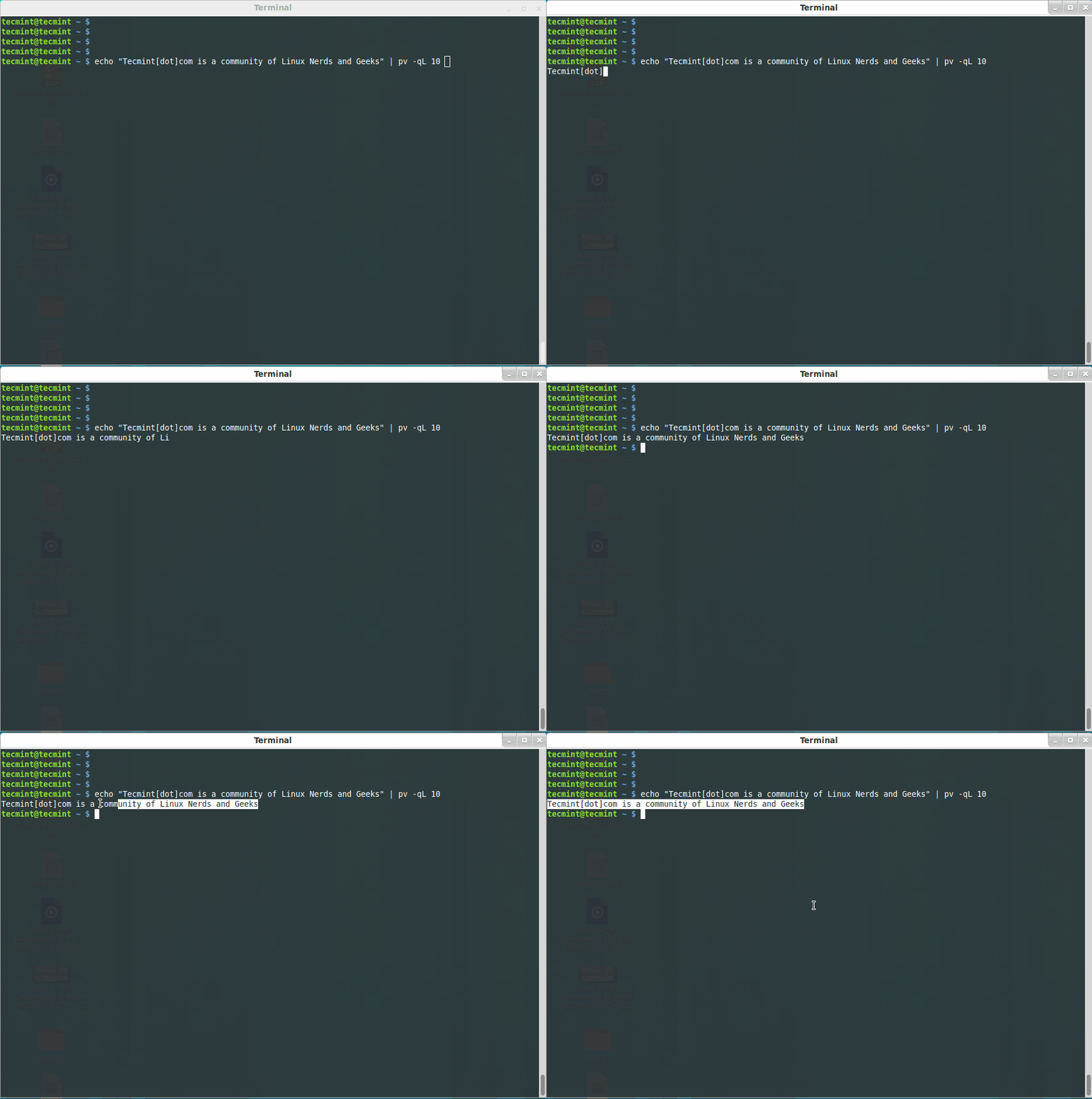
pv Command
You might have seen simulating text in movies. It appears as, it is
being typed in real time. Won’t it be nice, if you can have such an
effect in terminal? This can be achieved, by installing ‘pv‘ command in your Linux system by using ‘apt‘ or ‘yum‘ tool. Let’s install ‘pv‘ command as shown.
# yum install pv [On RedHat based Systems]
# sudo apt-get install pv [On Debian based Systems]
Once, ‘pv‘ command installed successfully on your
system, let’s try to run the following one liner command to see the real
time text effect on the screen.
$ echo "Tecmint[dot]com is a community of Linux Nerds and Geeks" | pv -qL 10
Note: The ‘q‘ option means ‘quite’, no output information and option ‘L‘
means the Limit of Transfer of bytes per second. The number value can
be adjusted in either direction (must be integer) to get desired
simulation of text.
toilet Command
How about printing text with border in terminal, using an one-liner script command ‘toilet‘. Again, you must have ‘toilet‘ command installed on your system, if not use apt or yum to install it.
$ while true; do echo “$(date | toilet -f term -F border –Tecmint)”; sleep 1; done
Note: The above script needs to be suspended using ctrl+z key.
rig Command
This command generates a random identity and address, every time. To run, this command you need to install ‘rig‘ using apt or yum.
# rig
aview Command
How about viewing an image in ASCII format on the terminal? We must have a package ‘aview‘ installed, just apt or yum it. I’ve an image named ‘elephant.jpg‘ in my current working directory and I want view it on terminal as ASCII format.
$ asciiview elephant.jpg -driver curses
xeyes Command
In last article we introduced a command ‘oneko‘ which attaches jerry with mouse pointer and keeps on chasing it. A similar program ‘xeyes‘ which is a graphical programs and as soon as you fire the command you will see two monster eyes chasing your movement.
$ xeyes
cowsay Command
Do you remember last time we introduced command, which is useful in
output of desired text with animated character cow. What if you want
other animal in place of cow? Check a list of available animals.
$ cowsay -l
How about Elephant inside ASCII Snake?
$ cowsay -f elephant-in-snake Tecmint is Best
How about Elephant inside ASCII goat?
$ cowsay -f gnu Tecmint is Best
That’s all for now. I’ll be here again with another interesting
article. Till then stay update and connected to backtrack. Don’t forget to
provide us with your valuable feedback in the comments below.
Kingsoft Office is a simple, powerful office suite developed by Zhuhai
based Chinese software developer Kingsoft. Components include: Kingsoft
Writer, Kingsoft Presentation and Kingsoft Spreadsheet. Kingsoft Office
personal version is completely free. With the Kingsoft Office suite, you
can view, edit, and send Microsoft Office documents, spreadsheets, and
other data on Linux. This offers most of the features and functionality like Microsoft Office.
The Kingsoft Office main interface includes a row of icons similar to
what you'd find in your basic word processor or spreadsheet editor. It
handles all the latest Microsoft Word, Excel, and PowerPoint file
formats as well as text and PDF files. You can create files as well, it
could get a bit tedious trying to produce anything too long or
complicated. Kingsoft Office works best for making a few changes to an
existing file. In our tests, we encountered no problems working with the
files we threw its way, and it was a simple process to add or edit text
or make other modifications.
Kingsoft Writer
Kingsoft Spreadsheet
Kingsoft Presentation
What's in this release:
Mini Toolbar for quick access to formatting selected text.
Spreadsheets supports interrupt calculation now.
New Polish translation. You can switch from Choose Language dialog.
Now both x86 and x64 versions for Linux.
Fixed Spreadsheets formula unusable when decimal point is comma.
Fixed Writer crashes when saving as docx file which contains OLE objects.
Fixed Presentation have extra margin on exported pdf file.
Fixed Presentation losing text when pasting some html table.
Fixed Spreadsheets doesn't works with comma decimal point.
Fixed Spreadsheets "Remove Duplicates" not works fine.
Fixed Spreadsheets "Move or Copy Sheet" not works fine.
Fixed unable change UI language on certain locales.
Fixed Spreadsheets flicks when drag on cells.
Fixed Spreadsheets prints with wrong paper size.
Fixed Spreadsheets loses focus after opening file.
Fixed some pdf related bugs
New document compare tool for Writer.
New Eye Protection Mode for Writer/Spreadsheets.
Fixed fails opening DOCX file which needs password
Fixed missing image when pasting in HTML format
Fixed missing links when export to pdf
Fixed unable to set paper size in Spreadsheets
Fixed a crash when copy/move sheets in Spreadsheets
Fixed invalid window state when startup with maximized on KDE
Available for Ubuntu 15.04 Vivid/15.10 Wily/Ubuntu 14.04 Trusty/Ubuntu 12.04 Precise/Linux Mint 17.x/13/other Ubuntu derivatives
To install Kingsoft (WPS) Office in Ubuntu/Linux Mint open Terminal (Press Ctrl+Alt+T) and copy the following commands in the Terminal:
Mac OS X (MacBuntu) Transformation
pack is ready for Ubuntu 16.04 Xenial Xerus
(Note: With this
transformation pack we are targeting multiple desktops for Macbuntu
transformation, MacBuntu pack is compatible with Unity, Gnome Shell,
Cinnamon, Mate and Xfce. Link to previous MacBuntu versions are also
linked below for previous Ubuntu releases)
MacBuntu (Macbuntu
Yosemite/El Capitan) transformation pack is ready for Ubuntu 16.04
Xenial. This pack contains themes for GTK (which supports: Unity,
Gnome, Cinnamon, Mate and Xfce two themes dark & light for Gnome
Shell, two themes for Cinnamon, two icon packs, cursors. There are
some issues with 16.04 where it make some parts of the pack useless:
1) boot/splash we do not recommend you to install boot screen
because there is a known bug for plymouth but we are still sharing,
if you want to give it a shot; 2) Login screen, it is only
offered for Ubuntu Unity and Ubuntu Gnome users but if you have
multiple desktops then you can't choose and another known problem, if
you remove lightdm-webkit then you will have blank screen, to solve
this issue you have to install other display manager, so better to
not install it. 3) Slingscold which is known as launchpad, it
does work on some desktops but it may don't work for some users and
you may see blank launcher.
Themes used in this pack contains some parts from
other sources credit also goes to these guys dark
and other icon theme Mine,
some code from white)
and Jared from Ravefinity
helped us in making of this transformation pack by fixing bugs in
themes. In this pack we are offering Plank dock themes because it
works without any issue unlike other docks. By following these
instructions you can change look of your Ubuntu 16.04 Xenial to look
like Mac. In previous packs we used LightDM webkit theme which looks
quite similar to Mac OS X login screen, this time we are offering
again but you have to install it on your own risk because we
experienced a lot of issues after installing it (like: not able to
login/blank screen).
As you know guys we are doing Mac packs from quite
sometime because such packs for Linux are almost stopped but we kept
this project on our must do list from 12.04, and as you know we have
reached to 16.04 with Mac transformation. Many people look on the
internet for pre-configured Macbuntu 16.04/Mac4lin, Mac Ubuntu theme
and so on, but it is good idea to transform it by yourself because if
you want to go back to default look or want to change look, you can
do it easily. By offering this pack no hate or infringing behavior is
intended, simply designed for those who don't want to use Mac or
can't use Mac for any reason.
Note: If you encounter any bug in
theme/icons/any stuff, report to us with screenshot or problem with
details.
What's in this Version?
A PPA dedicated
to Macbuntu packs.
Themes are
better coded, looks shiny, smooth, fast
To install Slingscold Launcher (Launchpad) in Ubuntu/Linux Mint open Terminal (Press Ctrl+Alt+T) and copy the following commands in the Terminal:
Terminal Commands :
sudo add-apt-repository ppa:noobslab/macbuntu
sudo apt-get update
sudo apt-get install slingscold
4: Albert Spotlight
(Alternative to Mac Spotlight)
Albert
alternative to OS-X spotlight created by Manuel, it offers pretty
much same features like Spotlight or maybe better than Spotlight. It
is a selection-based search system, which creates an index of all
items and files on the system. It is designed to allow the user to
quickly locate a wide variety of items on the computer, including
documents, pictures, music, applications, and System Preferences. You
can set custom hotkey and modify search criteria for albert.
After installation you can open Albert from Menu/Dash, and first set hotkey to activate albert.
Terminal Commands :
sudo add-apt-repository ppa:noobslab/macbuntu
sudo apt-get update
sudo apt-get install albert
5: Plank Dock
This time we chose Plank it seems a best choice for this pack
because it doesn't have any kind of issues, it is lightweight and we
are providing themes with this pack for Plank dock.
First of all install Plank dock with following command then
install Mac themes for Plank:
Terminal Commands :
sudo apt-get install plank
Install themes for Plank dock, enter following commands in
terminal:
You can use these
popular tools to change themes and icons in Ubuntu, Also you can
change other settings from these tweak tools.
Enter following
command to install tweak tools.
Terminal Commands :
sudo apt-get install unity-tweak-tool
sudo apt-get install gnome-tweak-tool
9: Install Monochrome
icons for Libreoffice:
Human icons are
default in LibreOffice which kind of look weird with this
transformation pack, to make LibreOffice more elegant with monochrome
icons follow these instructions.
Enter following
commands to install monochrome icons for libreoffice.
Terminal Commands :
sudo apt-get install libreoffice-style-sifr
After installation
go to LibreOffice menu select "Tools" > "Options"
> "LibreOffice" > "View" and select "Sifr"
under "Icon size and style". See following screenshots
10: (Optional) Mac fonts:
Last time I received request about Mac fonts, so this time I am including them with this pack. So here are fonts for you.
12: (Optional)
Install MacBuntu theme for LightDM Webkit Greeter:
Note: Install only in Ubuntu Unity with Lightdm and Ubuntu Gnome with
gdm pre-installed. Don't install it in other Ubuntu flavors.
Warning:
It can make your system unusable. Use this feature on your own risk,
last time we received a lot feedback that it is making system stuck on
blank screen. Please don't report any blank screen (If happens) issue
after installing it. We also faced issues while working with this tweak,
sometime it works fine but most of the time it doesn't, I can't
guarantee you that it will work for you. You have been warned.
Enter following commands to install Mac LightDM-webkit theme:
Terminal Commands :
sudo add-apt-repository ppa:noobslab/themes
sudo apt-get update
sudo apt-get install macbuntu-os-lightdm-lts-v7
After installation
reboot PC.
If you want to
revert back, You can get back LightDM default look:
Enter
following command to remove LightDM theme:
Terminal Commands :
sudo apt-get remove macbuntu-os-lightdm-lts-v7
After removal reboot
your PC.
Did you like our work on this pack? Let us
know in the comment below!!
Hai Nama saya Michael Christopher Phondiadi dari universitas budi luhur Fakultas FTI (Fakultas Teknologi Informasi) jurusan Teknik Informatika dan saya pengguna linux dengan ubuntu 16.04
Jika ada yang mau bertanya silahkan kirim email atau comment, Thank you